Contour Lines
Contour lines connect points of equal value in a field, providing an intuitive way to visualize the shape and structure of a dataset. They are particularly useful in MICRESS simulations for analyzing interfaces between different phases or concentration gradients. In this section, we demonstrate how to generate contour plots using MicPy, focusing on phase fractions and element concentrations.
We begin with an example showing the distribution of graphite (A9) phase fraction. Then, we extend the concept to visualize the carbon concentration field, using contour levels to highlight different concentration thresholds.
Example 1: Contour Lines for Graphite Fraction
In this example, we visualize the fraction of graphite (A9) phase in a MICRESS simulation. The contour lines help identify regions where the phase fraction reaches a specific threshold, offering insight into the phase distribution.
Step 1: Import Required Libraries
We start by importing the necessary library for reading MICRESS binary files.
Step 2: Load the Phase Fraction Data
The frac2 file contains phase fraction data for the graphite (A9) phase in the simulation. We use the read() function to extract the phase fraction field at the final recorded time step.
Step 3: Create the Initial Plot
We use the plot() method to visualize a slice of the graphite fraction field. In this example, we select the central slice along the y-axis (index=50) at the given time step. The transparency (alpha=0.8) is slightly reduced so that the contour lines remain clearly visible when overlaid.
Step 4: Extract Image Data
To add contour lines, we first need to access the underlying image data from the plot. This data represents the phase fraction values at each point in the selected slice.
# Get the image object and its spatial extent in data coordinates
image = ax.images[0]
xmin, xmax, ymin, ymax = image.get_extent()

# Get the 2D array of data values and its shape
data = image.get_array()
ny, nx = data.shape

# Calculate the pixel size in data coordinates
dx = (xmax - xmin) / nx
dy = (ymax - ymin) / ny

# Compute cell-centered coordinates of the data points
x = xmin + (0.5 + np.arange(nx)) * dx
y = ymin + (0.5 + np.arange(ny)) * dy
Step 5: Add Contour Lines
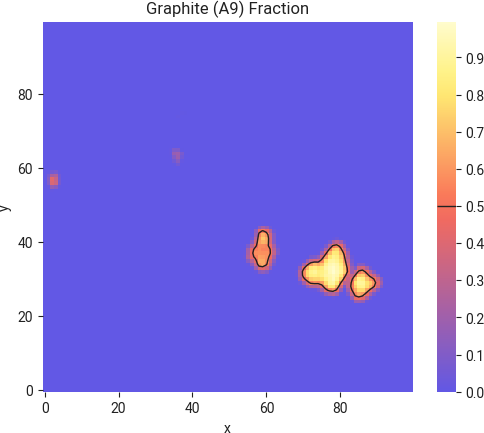
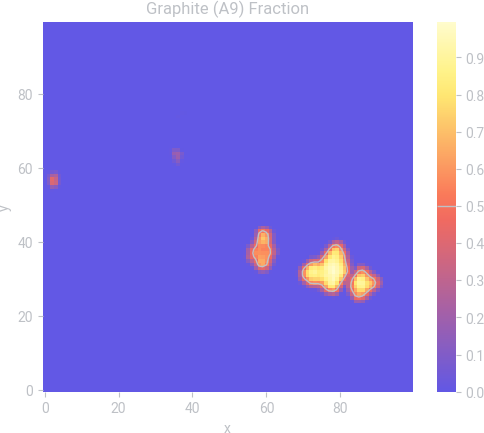
We draw contour lines at a phase fraction level of 0.5, which helps highlight regions where the graphite phase reaches 50%.
Step 6: Annotate the Colorbar
A horizontal line is added to the colorbar to indicate the contour level.
The resulting plot provides an intuitive representation of graphite fraction distribution in the simulation and the location of the sharp interface.
Example 2: Contour Lines for Carbon Concentration
In this example, we analyze the carbon concentration field in a cast iron solidification simulation. Contour lines are used to highlight specific concentration levels, revealing spatial variations in composition.
Step 1: Import Required Libraries
We begin by importing the MicPy library for handling MICRESS binary files.
Step 2: Load the Concentration Data
To analyze the final distribution of carbon concentration, we extract the data from the last time step of the conc1 file.
Step 3: Create the Initial Plot
The concentration field is visualized using plot(), with transparency set for better readability.
Step 4: Extract Image Data
We retrieve the image array from the plot to overlay contour lines.
# Get the image object and its spatial extent in data coordinates
image = ax.images[0]
xmin, xmax, ymin, ymax = image.get_extent()

# Get the 2D array of data values and its shape
data = image.get_array()
ny, nx = data.shape

# Calculate the pixel size in data coordinates
dx = (xmax - xmin) / nx
dy = (ymax - ymin) / ny

# Compute cell-centered coordinates of the data points
x = xmin + (0.5 + np.arange(nx)) * dx
y = ymin + (0.5 + np.arange(ny)) * dy
Step 5: Add Contour Lines
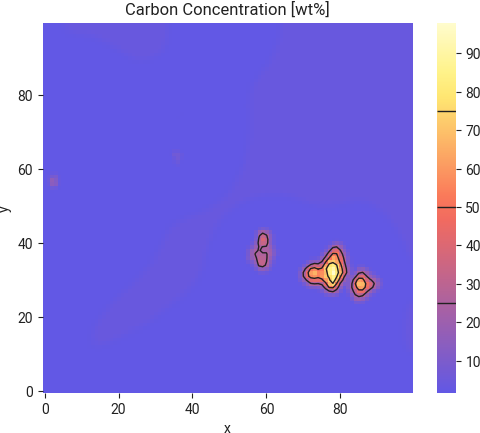
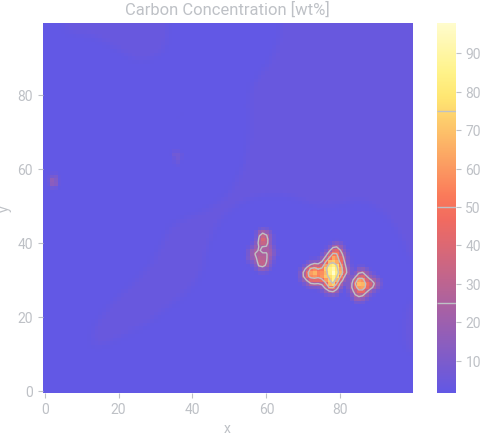
Contour lines are drawn at carbon concentration levels of 25%, 50%, and 75%. These levels highlight the concentration gradient within the material.
contours = ax.contour(
    x,
    y,
    data,
    levels=[25, 50, 75],
    colors=["green", "blue", "red"],
    linestyles=["solid", "dashed", "dotted"],
    linewidths=1,
)
Step 6: Annotate the Colorbar
To improve readability, horizontal lines are added to the colorbar at the same contour levels.
cbar.ax.hlines(
    [25, 50, 75],
    xmin=0,
    xmax=1,
    colors=["green", "blue", "red"],
    linestyles=["solid", "dashed", "dotted"],
    linewidth=1,
)
The resulting plot visually separates regions with different carbon concentrations, making it easier to identify areas with specific composition levels.