Main menu - Simulation
Start, Stop/Kill
The menu entry 'Start' is quite essential. It will start the attached application with the current input file as a parameter. The toolbar's start button does the same Toolbar.
Usually, this will be done locally, i.e. a local detached process. This way, an unintended crash will not harm the running simulation. Especially, if the simulation's restart output was written long ago. If MICpad will be closed in a normal way, the user will be asked to 'run the simulation in the background' or to 'kill the simulation'.
See Run Configuration for options to set up the kind of start. There is also an additional 'start' button with the same functionality.
See Application Configuration to configure the associated applications, i.e. MICRESS, HOMAT, Python, Thermo-Calc.
Refresh results
This can be used to re-read the result files manually.
Stop refreshing
A running simulation usually has an enabled auto-refresh to monitor the results.
The Run Configuration allows to enable/disable this functionality.
The menu entry here can be used to disable auto-refreshing.
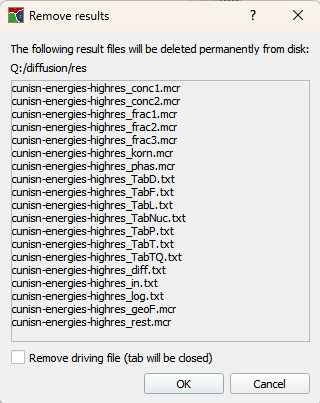
Remove results
This feature allows to remove all result files of a former simulation.
It covers all results independent of the extension used in Windows or Linux. This is especially usefull when mixing up results from Linux and Windows. MICpad will only show one of these files and this might not be the currently written to. E.g. an example with existing results was opened (Linux extensions) and the simulation should be started on Windows. In this case, MICpad will still show the Linux file.