Main menu - File
New
An untitled editor tab will be created. The text editor will be empty.
MICpad has some built in reasonable limits which hinder a MICRESS simulation to start with an empty input.
A minimal input is necessary to locate the result files. After saving the input, a start of a simulation is possible
# Language
# ========
# Please select a language: 'English', 'Deutsch' or 'Francais'
English
#
#
# Output Location
# ===============
# Options: [ <directory path>/ ] <base name>
# The default result directory is the driving file location.
Results/test
In principle, a full simulation setup can be set up with answering the parameter questions given by MICRESS. However, it is recommended to start with a file from the example collection.
Open
MICpad is designed for files of the following types:
- MICRESS driving files (.dri or _dri.txt)
- HOMAT input files (.hin)
- Mesh2HOMAT and Mesh2ABAQUS input files (.min)
- Thermo-Calc macro files (.TCM)
The according applications to run these files can be set in the Application configuration. Usually, MICRESS, HOMAT and Mesh2... will be detected automatically. Thermo-Calc has to be configured manually.
Of course, any other text file can be opened, too. E.g. external tables for the MICRESS input or material files (.mat) for HOMAT. Set the filter in the open dialog to 'all files'.
Examples/Templates
See Examples.
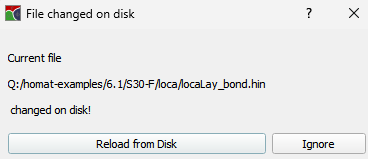
Reload from Disk
If the file in the editor was changed on disk by another editor/application, it can be reloaded here.
MICpad checks also for changed files before passing it to the attached application ('Start button'). If you ignore or close this warning, the file on disk will be overwritten with the current file in the editor.
File check of an HOMAT input file before startup
Recent Files
A list of recently opened files can be used for reopening a file again. It contains the last 21 files with the newest on top.
This list will be stored in the so called MICpad ressource file (.micpadrc7400). There is one file for each version of MICRESS. This file will be used by all opened MICpad instances and stored when closing it. Latest closed MICpad wins here!
There is no synchronization between different recent list of opened MICpads. A once loaded list from the ressource file will not be influenced by other MICpad instances.
Save/save as
Stores the editor content in a file on disk, resp. with a new name.
Copy
Like 'save as' but opens the copy in a new tab.
Typically, a copy of a MICRESS driving file should be set up to write results with a different name, not to overwrite old results. Therefore, the base name of the result files will be set to the new file name without extension automatically.
Close
Just closes the current tab. If there are not stored changes in the editor, a confirmation dialog with the option to save will pop up.
A grain growth simulation is still running while closing the editor tab
< 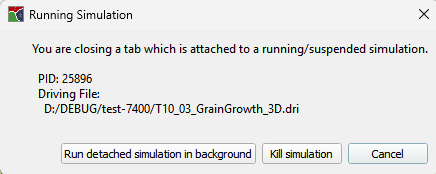
If there is a connection of the input tab to a running simulation, i.e. the simulation was started or submitted with the current instance of MICpad, a confirmation dialog for the running simulation will pop up.
Exit
Closes MICpad. For each input tab, the respective confirmation dialogs will pop up one after another.